
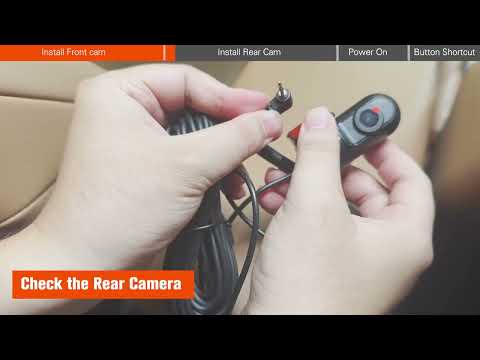
Video unavailable
This video can't be played right now.
KEYROO R4 Dash Cam Installation
If you have any issues, please feel free to email us for support: support@peztio.com 00:00~00:32 Package Content 00:33~02:23 Install Main Camera 02:24~04:53 Install Rear Camera 04:54~05:38 Connect Power Cable 05:39~06:05 Power on and format 06:05~06:58 Button Functions 1.Hi everyone! Today, we’re installing the Keyroo R4 4-channel dash cam. 2. Before we start, make sure all the camera parts and accessories are there and in good shape. If anything’s missing or damaged, just contact us. 3. Quick tip: A 128GB SD card is already inside the dash cam, so just check the card slot before you start. 4. Make sure to peel off the protective films on the lens and screen for the best recording and display. 5. Alright, next up is picking the main camera’s spot. Most folks install it right behind the rearview mirror on the windshield. 6. But avoid the dotted area and any non-glass spots, because the glue won’t stick well there, and the camera might fall off. 7. Clean the spot with wet & dry tissues. 8. Peel off the protective film from the transparent electrostatic sticker and stick it on the spot you picked. 9. This static sticker helps the main camera stick better and keeps the adhesive from messing up your windshield. 10. Peel off the 3M sticker from the main camera and stick the camera where the transparent film shows. 11. To remove the main camera, just hold the bracket and lift it up to detach it from the base. 12. To put it back, just push the camera down onto the base. 13 Next, let’s install the rear camera. It’s not waterproof, so we recommend installing it only on the rear windshield. 14. The rear camera rotates 360 degrees. Don’t forget to peel off the lens film before sticking it on. 15. Just like with the main camera, clean the spot and apply a transparent film before sticking 16. Stick the rear camera, making sure the cable points to your right. If it’s upside down, the video will be flipped. 17 Route the rear camera cable along the top rear roof, passing through the C-, B-, and A-pillars, and bring it to the front windshield where the main unit is. 18, Use a pry tool to tuck the wires into the car lining, and use cable clips to keep them neat. 19. Push the rear camera plug into the main camera all the way until it won’t go in any further. 20 Next, connect the main camera’s power cable—it needs to stay connected to power for daily use. 21. Plug the USB-C end into the main camera’s power socket. 22. Route the cable along the front top roof and A-pillar to the cigarette lighter port, usually found near the glove box. 23 Use a pry tool and cable clips to hide and tidy up the cable. 24 Plug the other end into the cigarette lighter port. 25 Start your car’s engine, and the camera will turn on automatically. 26 The first time you power on, you’ll hear ‘Please format the SD card.’ Just press the orange button to start formatting, and you’re all set. 27 Wait for seconds, and the camera will start recording once formatting is done. 28 If an accident happens, press the orange button once to lock the video. The flashing dot will turn yellow when it’s locked. 29 The Wi-Fi hotspot turns on when the dash cam powers up. If your phone can’t find it, hold the orange button for 3 seconds, then release—it’ll switch to 2.4G Wi-Fi, which works with most phones. 30. Pressing the black button can enable/disable the left and right cameras according to your preference. 31. You can enable or disable the in-car audio recording by holding the black button for 3s then release. 32. The dash cam is equipped with a GPS model, and you can see the location and route after connecting the dash cam with the Peztio app.
Suggested videos
1. Installation Guiadnce- Galphi Q2 Dash Cam
Peztio Official · 5:57
This 4K Dash Cam is CRAZY 🔥 Full Install + Setup (KEYROO R4-4K)
OTGMechanic · 11:18

Step1 Install the front camera insde your car - Arifayz Q4 Dual Dash Cam
Peztio Official · 4:09
Hardwiring a Dash Cam: Step-by-Step for Beginners - KEYROO R4 360 Dash Cam
Hyper Speed Media · 12:27
Peztio Q2 dashcam introduction (install & app control)
Peztio Official · 4:53

KEYROO R4 Dash Cam WiFi Connecting Video
Peztio Official · 5:03
Affver R5 Dash Cam WiFi Connecting Video
Peztio Official · 9:02
KEYROO 4K Dashcam Review! My Honest Thoughts??
It's A Deal · 6:08
WiFi Connection Guidance
Peztio Official · 3:23
Keyroo 360° View 4K 4 Channel Dash Cam | Protect Your Car With This Security Camera
Sam Aka Vlogs · 6:33
KEYROO Q1 Dashcam WiFi Connection
Peztio Official · 1:16

KEYROO R4: The Ultimate 360 4K Dash Cam Protection
Bright Edge Gadgets · 3:32