
Interactive Forms in SharePoint with Copilot (Build Once, Reuse as a Skill)
Copilot in SharePoint can now build interactive forms over the top of your lists and libraries. In this video I build one from a single prompt, use it to update a list, then save it as a skill and run it on a second list. Some jobs are hard to do by typing into chat or editing list rows one at a time. With an interactive form you work in something visual. You click through the items, the form checks your rules as you go, and nothing in the list is updated until you approve it. What's covered: - Prompting Copilot in SharePoint to generate an interactive form over a list - Putting your rules in the prompt so the form checks them as you click - Sending your choices back to Copilot and approving the update to the list - Saving the form as a skill, with the template stored in Site Assets - Changing the template from chat - Running the same skill on a different list with different rules - Building an HTML calendar page that reads both lists Subscribe to my newsletter for practical SharePoint, Copilot and agents content: https://danielanderson.io Follow me on LinkedIn: https://www.linkedin.com/in/danielando/ Chapters 0:00 Interactive forms in SharePoint with Copilot 0:35 The leave list we're working with 0:53 The prompt that generates the form 1:22 The form: pending requests and team cover 1:39 Putting the cover rules in the prompt 2:03 Approving and declining with a live cover check 2:53 Submitting decisions back to Copilot 3:07 Human in the loop: updating the list 3:24 Saving the form as a skill 4:02 Where the skill lives in the site 4:27 Running the skill with /leave-cover 5:29 Changing the template from chat 6:11 Testing the cover rules 7:51 Same skill, different list 9:19 A calendar page across both lists 9:42 Recap 10:16 The finished calendar page #SharePoint #Copilot #Microsoft365
Suggested videos

I Built a SharePoint Asset Register App with Copilot (No Code)
Daniel Anderson · 15:46
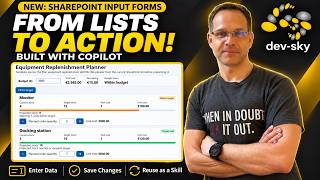
From SharePoint List to interactive planner: Copilot build your next order!
Marc André Schröder-Zhou · 9:48

SharePoint HTML Views: I Built an App Inside a Document Library (No Code)
Daniel Anderson · 29:43

Your SharePoint List Can Be an App Now (HTML List Views)
Daniel Anderson · 11:26

Turn SharePoint Lists into Live Apps with Copilot
Zach Rosenfield and Microsoft Community Learning · 10:24

Announcing a New UI Paradigm for Copilot in SharePoint with AI Input Forms
Zach Rosenfield · 5:15

Daniel Anderson & Heroic Dose - Miss Maybelle (live)
danielmakesnoise · 4:38
Build Interactive Apps from SharePoint Lists with Microsoft 365 Copilot | No Power Apps, No Coding
M365 & Modern Tech Help · 10:07

#144 The Gaffer: Daniel Anderson
James Graham's The Bye Round Podcast · 1:35:31

How to Create Amazing Dashboards with Microsoft Copilot!
Scott Brant · 11:42

Copilot Code Is Here: I Built a CRM on SharePoint for $55
Daniel Anderson · 11:42

Copilot Studio - Create an Agent with Microsoft Forms, Power Automate & SharePoint - Step-by-Step
Code & Cloud · 31:04