
Design a Parametric Snap-Fit in Fusion | 3D Printing Tutorial
Learn how to design a fully parametric snap-fit in Fusion (formerly Fusion 360) using a practical workflow that's easy to reuse in your own 3D printing projects. In this step-by-step tutorial, you'll build a circular snap-fit from scratch while learning essential Fusion workflows, including sketching, shelling, surface modeling, feature patterns, offset extrudes, and component management. You'll also export the design for 3D printing and prepare it in Bambu Studio. Whether you're designing enclosures, containers, lids, mechanical parts, or product prototypes, these techniques will help you create reusable parametric designs that are easy to modify for future projects. In this video you'll learn: - Design a reusable parametric snap-fit in Fusion - Combine surface and solid modeling in Fusion - Create circular patterns with bodies and features - Use Fusion's powerful Offset Extrude feature - Organize Fusion components for manufacturing - Export clean STL files from Fusion - Prepare and slice the model in Bambu Studio 📘 Get the written guide and tool recommendations here: 👉 https://www.themakerletters.com 🧰 See all tools and discounts: 👉 https://www.themakerletters.com/maker-deals ⏱ Chapters 00:10 Create the Base Sketch 00:36 Hollow the Part with Shell 00:56 Design a Flexible Snap-Fit 01:34 Cut the Snap-Fit Opening 02:03 Surface Modeling for Better Snap-Fits 02:28 Mixing Surface and Solid Modeling in Fusion 02:44 Mirror Once, Model Twice as Fast 03:04 Build the Snap-Fit Geometry 03:30 Why Every Snap-Fit Needs Fillets 03:51 Complete the Locking Features 04:07 Merge the Bodies 04:31 Circular Patterns with Bodies 05:01 Circular Patterns with Features 05:31 Set Up the Offset Extrude Sketch 05:55 Offset Extrude: A Powerful Fusion Feature 06:26 Organize Fusion Components for Export 06:39 Export STL Files from Fusion 07:04 Import into Bambu Studio 07:22 Arrange Parts for Faster Printing 07:42 Slice the Model in Bambu Studio 07:58 More Fusion & 3D Printing Tutorials from The Maker Letters 🛠 Tools & Resources I Use Some links are affiliate links — they help support the channel at no extra cost to you. Design & 3D Printing 📐 Get Autodesk Fusion: https://www.tkqlhce.com/click-101463596-15735268sid=YT&url=https%3A%2F%2Fwww.autodesk.com%2Feu%2Fproducts%2Ffusion-360%2Foverview 💻 Shop Lenovo: https://lenovo.vzew.net/c/6330855/2760099/3808 Video Creation 🎬 TechSmith Camtasia: https://techsmith.z6rjha.net/YRK6DR E-Commerce & Digital Assets 🛒 Shopify: https://shopify.pxf.io/zxden7 🎨 Envato Elements: https://1.envato.market/dOqDrQ 3D Print Files 🛒 Etsy: https://www.etsy.com/shop/ByTheMakerLetters 📥 Cults3D: https://cults3d.com/en/users/TheMakerLetters/3d-models Learning & Creativity 🎓 Udemy Course: https://www.udemy.com/course/autodesk-fusion-for-beginners/?referralCode=10678AEF2815D2F4D43D 📚 Skillshare: https://skl.sh/4gdLTCi Security & Tools 🔒 NordVPN: https://www.tkqlhce.com/click-101463596-13914989 🗝 NordPass: https://www.kqzyfj.com/click-101463596-13977273 🪛 HOTO Tools: https://hototools.sjv.io/RGEk4g 📂 More from The Maker Letters 📺 Subscribe on YouTube: https://www.youtube.com/@The_maker_letters/videos 🌐 Blog & Tutorials: https://www.themakerletters.com/autodesk-fusion-tutorials-for-beginners ⚠️ Disclaimer Some of the links above are affiliate links. I may earn a small commission at no extra cost to you — this supports the channel and helps me keep creating free tutorials. This tutorial was created using Autodesk Fusion. All product names, logos, and brands mentioned or shown are the property of their respective owners. This channel is not sponsored by any company unless clearly stated. All opinions are my own, based on personal experience. Projects are shown for educational and entertainment purposes only. Always follow proper safety procedures and manufacturer guidelines. Any project you attempt is at your own risk.
Suggested videos

How to create a text in Fusion 360 | Fusion 360 tutorial
The Maker Letters · 1:48

Parametric Modeling Explained | Fusion 360 for 3D Printing
Brandon Santana · 10:18
Autodesk Fusion Tutorial: Create an Industrial Design Pen Holder for 3D Printing
The Maker Letters · 5:11

Fusion 360: How To Make A Snap Fit Mount For Round Objects
Lichtzeichen Anlage · 12:25
Design a Best Selling 3D Printed Vase in Autodesk Fusion
The Maker Letters · 8:10
How to Design a Stronger Snap-Fit Pin for 3D Printing
Send to Print · 8:11
Fast Fusion 360 - Snap Fit Parts for 3D Printing
3D Hobbee · 4:38

SINACH - Way Maker (Lyrics)
LyricsFeverReborn · 5:10
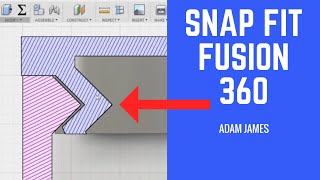
HOW TO CREATE A SNAP FIT IN FUSION 360!
adam james · 13:33

Leeland - Way Maker (Lyrics)
music meets heaven · 8:25
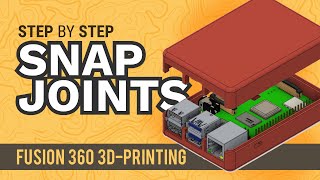
Fusion 360 Snap Fit Cases | 3D-Printable Raspberry Pi Case
Product Design Online · 35:15

LeapFrog Letter Factory ABC Song | Learn Letters and Sounds
LeapFrog · 2:20