
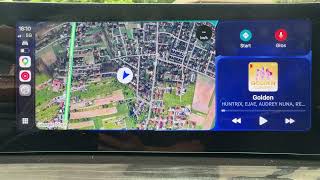
OMODA 5 EV – How to Enter and Manage Apple CarPlay
In this short video I show how to enter and manage Apple CarPlay on the OMODA 5 EV (OMODA E5) and also cover Android Auto basics. You will learn how to connect your smartphone, open CarPlay from the car homepage, manage CarPlay apps and music, adjust Siri and other voice assistant settings, enable silent modes and change CarPlay visuals so the system works the way you want while driving. How to enter Apple CarPlay on OMODA 5 EV? How to manage Apple CarPlay apps and settings on OMODA 5 EV? How to enable Siri or other voice assistant for CarPlay on OMODA 5 EV? 0:00 Introduction – OMODA E5 and CarPlay overview 0:08 Connect your smartphone and open CarPlay or Android Auto from the homepage 0:21 Manage apps, music and supported CarPlay apps 0:32 Adjust settings – silent mode, Siri, Google Assistant and CarPlay visuals 0:48 Final tips, like, comment and subscribe #OMODA5EV #AppleCarPlay #CarPlaySetup #CarPlay Find out more: https://www.hardreset.info/devices/omoda/omoda-5-ev/how-to-enter-and-manage-apple-carplay/ Follow us on Instagram ► https://www.instagram.com/hardreset.info Like us on Facebook ► https://www.facebook.com/hardresetinfo/ Tweet us on Twitter ► https://twitter.com/HardResetI Support us on TikTok ► https://www.tiktok.com/@hardreset.info Use Reset Guides for many popular Apps ► https://www.hardreset.info/apps/apps/
Suggested videos
BYD ATTO 2 DM-i – All Tutorials, Settings, Hidden Features & Tips
HardReset_info CARs · 6:57:37

OMODA 5 EV – How to Enter and Exit Android Auto & Apple CarPlay
HardReset_info CARs · 0:37
BYD Sealion 6 – 5 Worst Features of the Car
HardReset_info CARs · 1:00
OMODA 5 EV – How to Connect Android Auto & Apple CarPlay
HardReset_info CARs · 1:06
Nissan Maxima – 5 Best Features of the Car
HardReset_info CARs · 0:38
Omoda 5 Apple CarPlay Setup & Troubleshooting | Fix Connection Issues Fast!
Car FAQts · 0:58

BYD Sealion 6 – Does It Have Isofix?
HardReset_info CARs · 1:01
Omoda 5 Infotainment Guide 2026 | System Walkthrough & Driver's Display
the interface Cars · 29:28
Peugeot 3008 I – How Safe Is the Car?
HardReset_info CARs · 0:56
OMODA 5 EV – How to access and manage Apple CarPlay
HardReset CARs IT · 1:00

BYD Sealion 6 – How Safe Is This Car?
HardReset_info CARs · 0:56
OMODA 5 EV – How to Use Siri with CarPlay
HardReset_info CARs · 1:06