
Video unavailable
This video can't be played right now.
How to Make a Christmas List in Google Slides - Full Guide
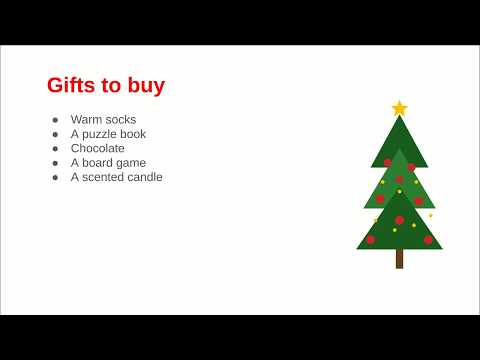
Make a Christmas list in Google Slides, from a blank presentation to a shared link, in about two minutes. No template, no download, and no Slidesgo account. Chapters: 0:00 - The hook: a Christmas list, no template, no download 0:15 - Open a blank presentation 0:30 - Add the title and the year 0:43 - Build the gift list 1:10 - Add the Christmas tree picture 1:27 - Make the heading red 1:50 - Share it with your family Start with a blank presentation. Add a new slide, open Layout, and pick Blank, so no placeholders get in your way. On the first slide, click the title and type My Christmas List. Then click the subtitle and add the year, Christmas 2026. On the blank slide, add a text box and type a heading, Gifts to Buy. Make it bold and a little bigger so it stands out. Then type your five gifts, one per line, and turn them into a bulleted list. Now make it festive with a picture. Go to Insert, then Image, then Upload from Computer, and pick your Christmas tree picture. Template sites like Slidesgo offer ready-made designs, but a simple list is faster to build from scratch. Match the heading to the tree. Select the heading text, open the text color, and pick red. One color change is enough. The red heading and the green tree do the festive work for you. To share it, click Share, then Copy link. The deck stays Restricted, so only people you add can open it. Send the link to your family, and your Christmas list is done. What is on your Christmas list this year?
Suggested videos

Drawing a Basic Square Using Turtle in Python – Beginner's Guide!
Delft Stack · 3:17

How to Quickly Remove a Pop-Up in Google Chrome | DelftStack Tutorial
Delft Stack · 0:59

How to Hide Like Count on Instagram
Delft Stack · 2:14

How to Turn Off Gboard Predictive Suggestions on REDMI Note 17 Pro 5G with HyperOS 3
Delft Stack · 1:00

How to View WiFi Signal Strength on Windows
Delft Stack · 2:09

How to Make Google Chrome Faster | DelftStack Tutorial
Delft Stack · 1:11
Stop Unwanted Pages from Popping Up in Google Chrome | DelftStack Tutorial
Delft Stack · 1:11
How to Free Up Space in Ubuntu and Other Linux Distributions
Delft Stack · 1:44