
The New Excel Trick to Link CSV Files Instantly
Link CSV files to Excel with one formula. The new IMPORTCSV function pulls in CSV data without opening the files. No Power Query, no VBA. ⬇️ Download the practice files: https://www.xelplus.com/excel-importcsv-function/?utm_source=yt-video&utm_medium=vid-description&utm_campaign=download-importcsv&utm_content=importcsv#download-section 📘 Combine and clean CSV files at scale with Power Query: https://www.xelplus.com/course/excel-power-query/ Six regions send a CSV file every month. You need to know who submitted, what the revenue looks like, and whether any data is missing. Instead of opening each file, you'll build a small dashboard that checks all of them from one workbook. Copy the file paths, then point IMPORTCSV at them. Add a drop-down and XLOOKUP to switch between regions. Use the take_rows argument with XMATCH and ISNA to check whether each file has the selected month, then color-code the result with conditional formatting. CHOOSECOLS and SUM total the revenue. LEN and SUMPRODUCT count blank cells, because COUNTBLANK doesn't work on arrays returned by a formula. You'll also see five things to know before using IMPORTCSV: SharePoint and OneDrive links, refreshing with Data → Refresh All, skipping and taking rows, the locale argument for regional formats, and IMPORTTEXT for semicolon-delimited files. Plus a custom number format that shows a link icon instead of a long file path. IMPORTCSV is currently available to Microsoft 365 Insiders (Beta Channel, Excel for Windows, Version 2502, Build 18604.20002 or later). ★ 500,000+ professionals learn Excel with our courses: https://link.xelplus.com/yt-d-all-courses ✉️ Get one practical Excel tip every week in our free newsletter, Between the Sheets: https://link.xelplus.com/yt-d-newsletter 0:00 Check CSV files without opening them 1:32 The scenario: monthly CSV files from six regions 2:08 Copy file paths with Copy as Path 2:35 IMPORTCSV: load a CSV file with one formula 3:23 Switch files with a drop-down and XLOOKUP 4:43 5 things to know: SharePoint, refresh, rows, locale 6:28 IMPORTTEXT for semicolon-delimited files 7:02 Hide file paths with custom number formatting 8:39 Month drop-down to check submissions 9:45 XMATCH and ISNA: flag missing months 11:11 Color-code results with conditional formatting 12:00 Total revenue with CHOOSECOLS and SUM 12:27 Count missing data with LEN and SUMPRODUCT 13:36 IMPORTCSV vs Power Query: when to use which 🎬 XLOOKUP explained: https://youtu.be/4c0CLUER6nw 🎬 Custom number formatting: https://youtu.be/68Tet_8BNB8 🎬 Learn Power Query: https://youtu.be/x7mzOYEn0XA 🔓 Join this channel to get access to perks: https://www.youtube.com/channel/UCJtUOos_MwJa_Ewii-R3cJA/join 🚩 Connect with us: Instagram: https://www.instagram.com/lgharani LinkedIn: https://www.linkedin.com/in/leilagharani #excel #importcsv #exceltips
Suggested videos

Excel Dashboards Aren't Supposed to Look Like This
Leila Gharani · 12:11

Power Query for Beginners: Automate Your Excel Work in 25 Mins
Leila Gharani · 27:01

Stop Writing Huge Excel Formulas. (Use ONE DOT Instead)
Leila Gharani · 10:24

How to Use XLOOKUP in Excel (5 Practical Examples)
Leila Gharani · 13:34

What Actually IS a Pivot Table?
Leila Gharani · 3:52

Stop OneDrive From Hijacking Your Desktop and Documents
Leila Gharani · 11:58

8 Excel Features Every Office Worker Should Know
Leila Gharani · 11:48
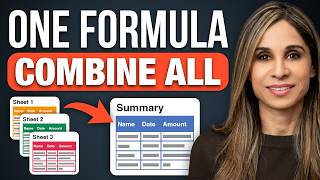
Stop Copying Data Between Excel Sheets! (Do This Instead)
Leila Gharani · 10:31